Clean Output
Hide overlays before going live and keep only the camera feed on HDMI.
 Zach Yuan Studio
Clean HDMI camera for OBS and capture cards
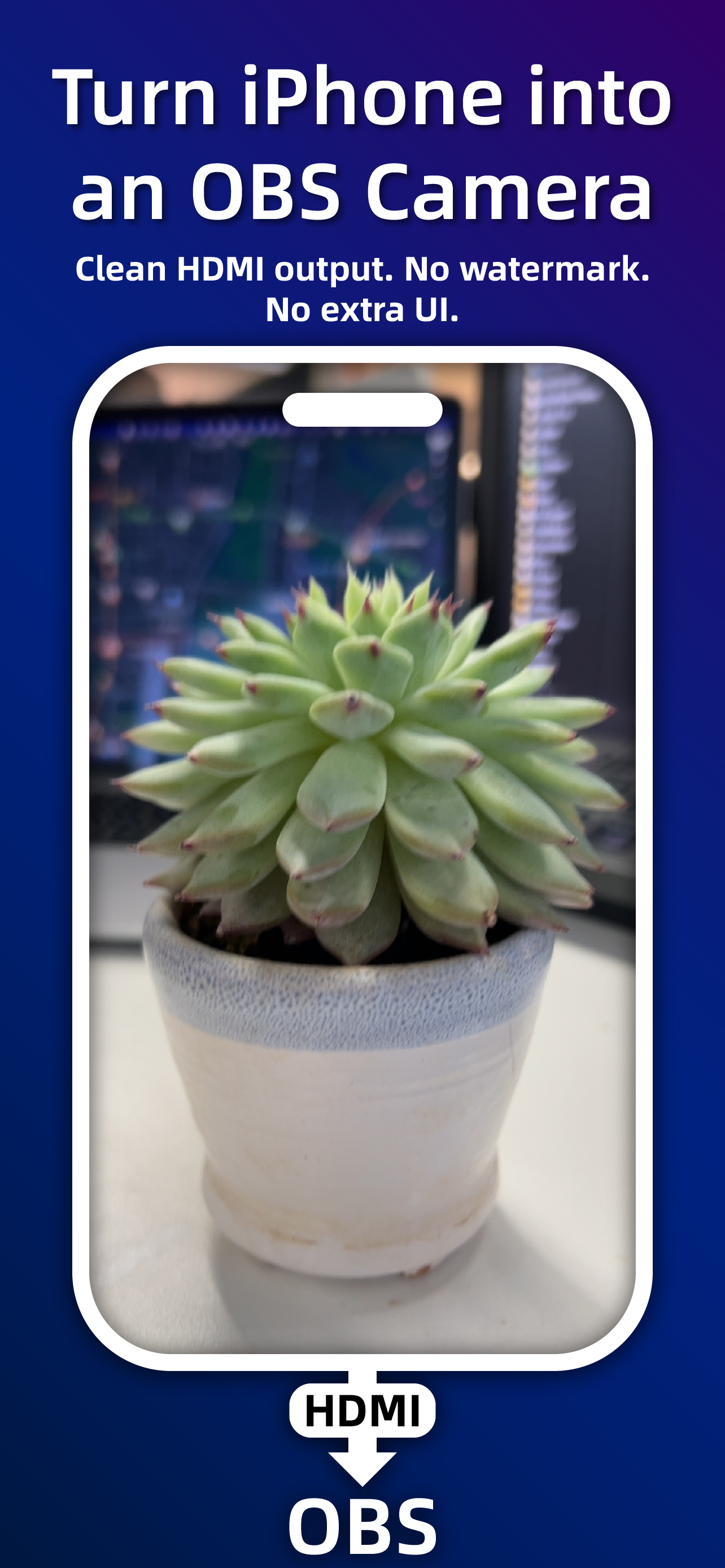
HDMI Cam gives creators a clean, watermark-free camera feed with no distracting UI. Built for OBS, portrait streams, video meetings, capture cards, and teaching demos.
HDMI Cam
Hide overlays before going live and keep only the camera feed on HDMI.
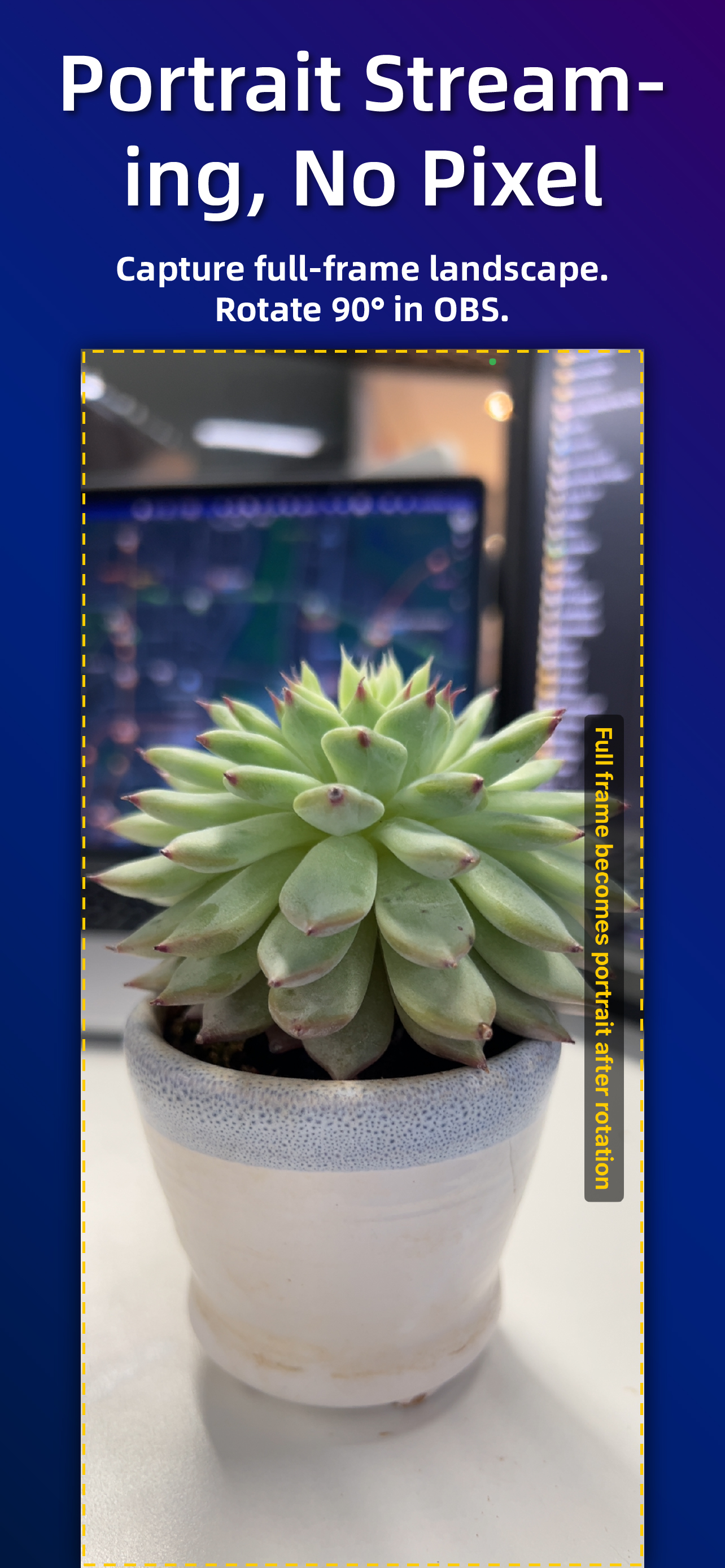
Capture full-frame landscape and rotate 90 degrees in OBS for full-pixel portrait video.
Tap to focus, long press to lock AF/AE, double tap settings, switch lens fast.
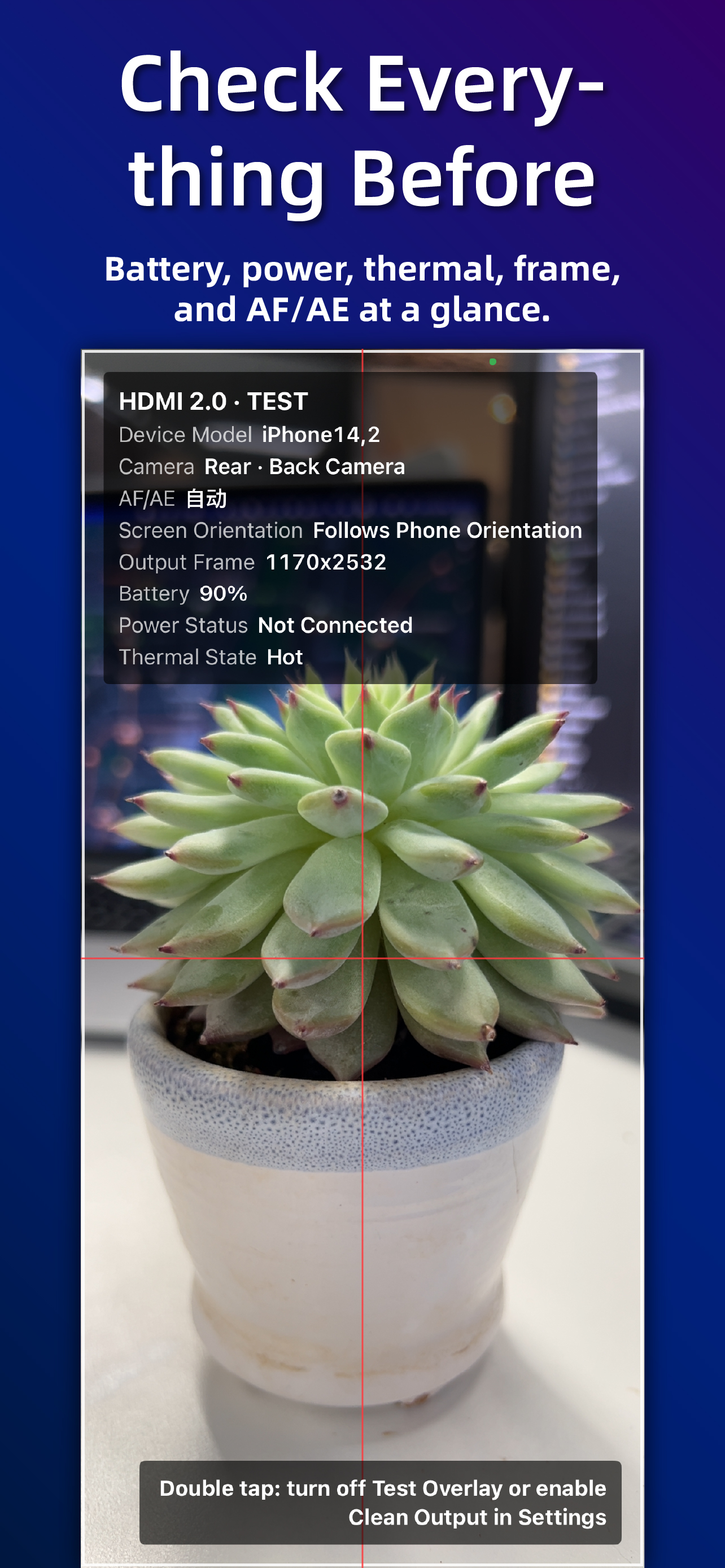
Check camera, battery, power, thermal state, frame, and AF/AE before the stream starts.
HDMI · OBS · Capture Card
Guides
Detailed workflows for OBS, vertical streaming, capture cards, and iOS video effects.
Turn an iPhone into a focused OBS camera feed without watermark, camera UI, or extra overlays.
Read guideA practical workflow for TikTok-style, Shorts-style, and portrait live streams in OBS.
Read guideA compact checklist for avoiding black bars, unstable power, wrong mirroring, and focus hunting.
Read guideHDMI Cam works with system-level iOS video effects instead of adding heavy in-app filters.
iOS
Portrait, Studio Light, and Voice Isolation are available through iOS Control Center on supported devices while HDMI Cam is running.
Support
No. HDMI Cam is designed for a clean HDMI feed without watermark or extra UI during output.
Yes. Use OBS Portrait Optimized when your capture card only captures landscape, then rotate the source 90 degrees in OBS.
Yes. Supported system video effects can be enabled from Control Center while the app is running.